• Showing posts with label Google/ Gmail. Show all posts
    Showing posts with label Google/ Gmail. Show all posts

    HOW TO DELETE A PAGE ON GOOGLE PLUS


    1. To delete a page on Google Plus you need to login to your Google plus account


    2. Place the mouse pointer on More in the left hand side and select Pages 


    3. Now place the mouse pointer on your page image so that Settings and Managers will appear


    4. Now click on Settings 


    5. Now scroll down to see Delete Page

    6. Click on Delete Page
    7. Click Yes if you want to delete your page


    8. After clicking on Yes your page will be deleted immediately.
    Read More ->>

    Add Photos to Gmail Messages


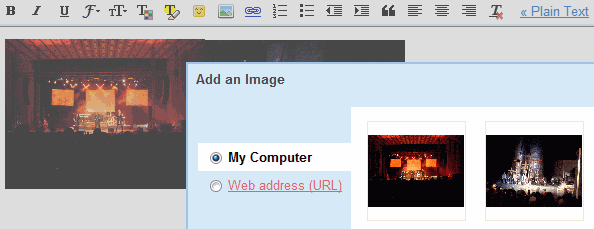
    Gmail's rich-text editor has never been very powerful, especially if you look at other web applications like Google Docs or Zoho. An important missing feature is inserting images in a message: you can attach photos, but they're usually displayed at the bottom of the message and not all mail clients show thumbnails. One workaround was to upload the images to a website, open it in a different window and then drag it to Gmail's editor.

    Now you no longer have to do this since Gmail added inserting images as a Labs feature. After enabling the feature, you'll notice a new photo icon when you compose a message using the rich editor. You can insert images from your computer and images published online, by typing their addresses. Unfortunately, Gmail doesn't use the new Flash uploader, so you can't select more than one photo at a time.

    "Keep in mind that Gmail doesn't show URL-based images in messages by default to protect you from spammers, so if you're sending mail to other Gmail users, they'll still have to click Display images below or Always display images from ... to see images you embed," mentions the Gmail blog.


    To enable the new feature, go to Gmail Labs, search for "inserting images", select the "Enable" radio button and don't forget to click on "Save changes".

    Tip: if the uploaded image is too large, click on it and choose from the available sizes (small, medium, large) or resize the image by dragging one of the corners.
    { Thanks, Sungsah. }
    Read More ->>

    ဒိမွာ member လုပ္ရင္ Join this Site ကုိနွိက္ၿပိး Email ႏွင့္ယင္ပါ